> ## Documentation Index
> Fetch the complete documentation index at: https://docs.blinko.space/llms.txt
> Use this file to discover all available pages before exploring further.
# Quick AI
> Quickly launch AI assistant from anywhere
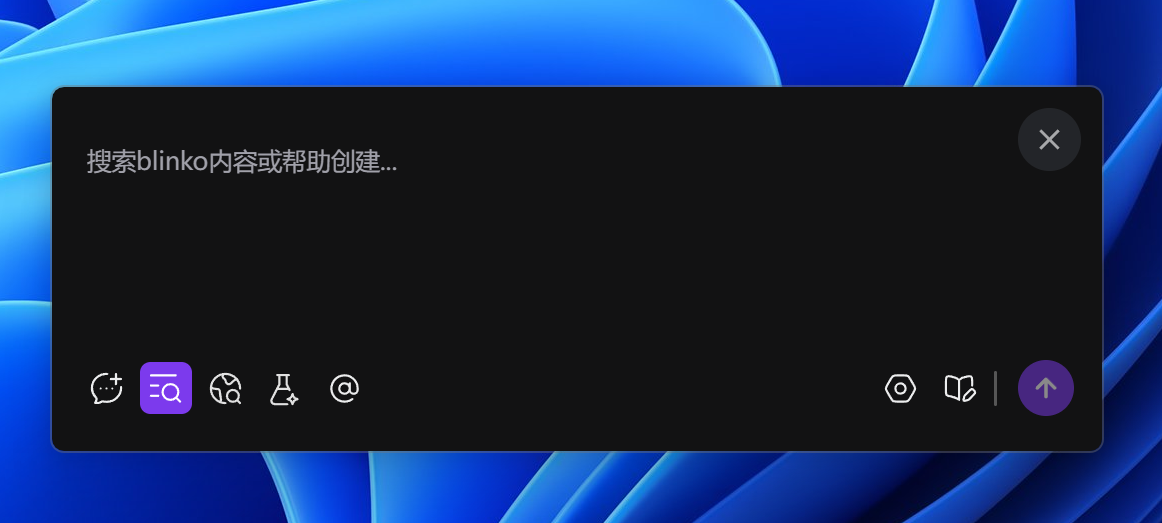
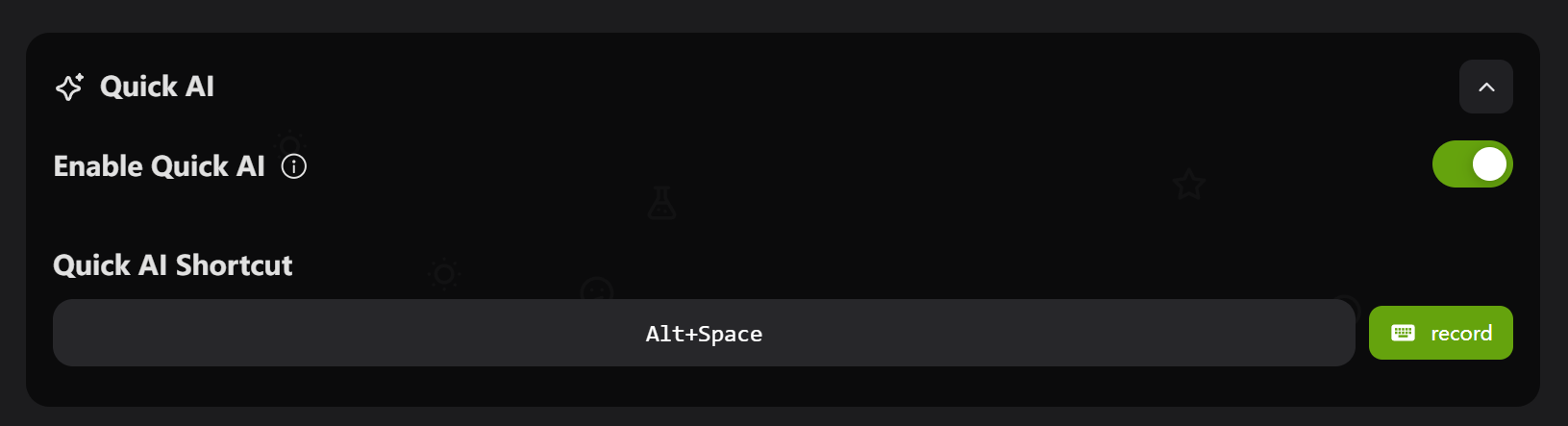 ## Default Hotkey
**`Alt + Space`** - Quickly open AI chat window
## How to Setup
1. Open Settings → Desktop & Hotkeys
2. Enable "Enable Quick AI"
3. Customize hotkey:
* Click the AI hotkey input field
* Click "Record" button
* Press your desired key combination
* Click "Stop" to save
## How to Use
1. Press `Alt + Space` in any application
2. Type your question or request
3. AI will answer based on your note content
## AI Features
* **Smart Conversations**: Personalized answers based on your note library
* **Context Understanding**: Understands your question background
* **Multiple Uses**:
* Explain concepts and ideas
* Summarize note content
* Answer questions
* Provide suggestions
## Use Cases
* **Learning Assistant**: Ask about learned topics
* **Work Helper**: Get suggestions based on work notes
* **Creative Inspiration**: Expand ideas from existing thoughts
* **Quick Search**: Find related note content
## FAQ
**AI not responding?**
1. Check if AI configuration is correct
2. Verify network connection
3. Restart Blinko application
**Inaccurate answers?**
AI answers based on your note content - richer notes lead to better answers
**Reset hotkey**
Click the refresh button next to AI hotkey setting
## Default Hotkey
**`Alt + Space`** - Quickly open AI chat window
## How to Setup
1. Open Settings → Desktop & Hotkeys
2. Enable "Enable Quick AI"
3. Customize hotkey:
* Click the AI hotkey input field
* Click "Record" button
* Press your desired key combination
* Click "Stop" to save
## How to Use
1. Press `Alt + Space` in any application
2. Type your question or request
3. AI will answer based on your note content
## AI Features
* **Smart Conversations**: Personalized answers based on your note library
* **Context Understanding**: Understands your question background
* **Multiple Uses**:
* Explain concepts and ideas
* Summarize note content
* Answer questions
* Provide suggestions
## Use Cases
* **Learning Assistant**: Ask about learned topics
* **Work Helper**: Get suggestions based on work notes
* **Creative Inspiration**: Expand ideas from existing thoughts
* **Quick Search**: Find related note content
## FAQ
**AI not responding?**
1. Check if AI configuration is correct
2. Verify network connection
3. Restart Blinko application
**Inaccurate answers?**
AI answers based on your note content - richer notes lead to better answers
**Reset hotkey**
Click the refresh button next to AI hotkey setting