> ## Documentation Index
> Fetch the complete documentation index at: https://docs.blinko.space/llms.txt
> Use this file to discover all available pages before exploring further.
# Quick Note
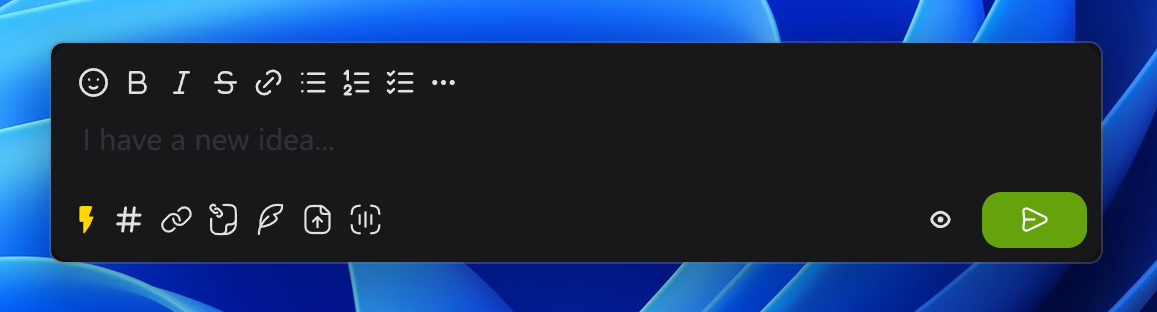
> Quickly open Blinko from anywhere to capture ideas
 ## Default Hotkey
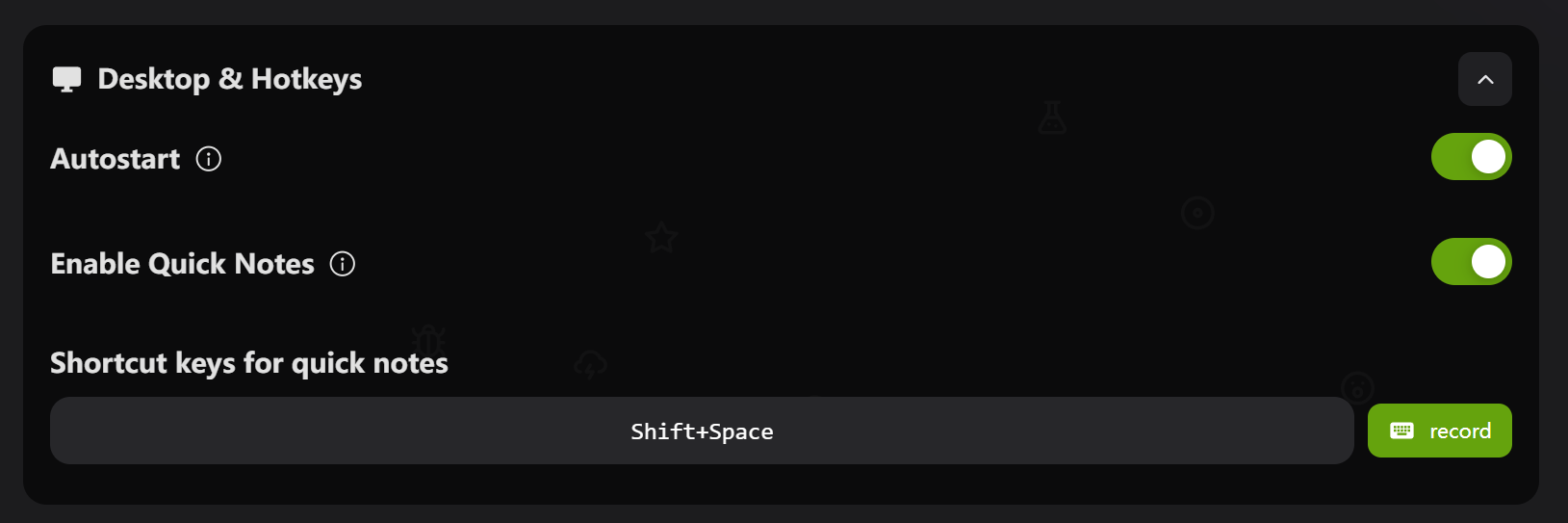
**`Shift + Space`** - Quickly open new note window
## How to Setup
1. Open Settings → Desktop & Hotkeys
2. Enable "Enable Global Hotkey"
3. Customize hotkey:
* Click the hotkey input field
* Click "Record" button
* Press your desired key combination
* Click "Stop" to save
## How to Use
1. Press `Shift + Space` in any application
2. Type your thoughts or notes
3. Press `Ctrl + Enter` to save
## Supported Keys
* **Modifiers**: Ctrl/Cmd, Alt, Shift
* **Letters/Numbers**: A-Z, 0-9
* **Function Keys**: F1-F12
* **Special Keys**: Space, Tab, Esc
## FAQ
**Hotkey not working?**
1. Check if enabled
2. Restart Blinko
3. Check for software conflicts
4. Try different key combination
**Reset to default**
Click the refresh button next to hotkey setting
## Default Hotkey
**`Shift + Space`** - Quickly open new note window
## How to Setup
1. Open Settings → Desktop & Hotkeys
2. Enable "Enable Global Hotkey"
3. Customize hotkey:
* Click the hotkey input field
* Click "Record" button
* Press your desired key combination
* Click "Stop" to save
## How to Use
1. Press `Shift + Space` in any application
2. Type your thoughts or notes
3. Press `Ctrl + Enter` to save
## Supported Keys
* **Modifiers**: Ctrl/Cmd, Alt, Shift
* **Letters/Numbers**: A-Z, 0-9
* **Function Keys**: F1-F12
* **Special Keys**: Space, Tab, Esc
## FAQ
**Hotkey not working?**
1. Check if enabled
2. Restart Blinko
3. Check for software conflicts
4. Try different key combination
**Reset to default**
Click the refresh button next to hotkey setting