> ## Documentation Index
> Fetch the complete documentation index at: https://docs.blinko.space/llms.txt
> Use this file to discover all available pages before exploring further.
# Text Selection Toolbar
> Translate, ask AI, and bookmark any selected text
 ## How to Use
1. Select text in any application
2. Press \`Ctrl + \`\` (or your set hotkey)
3. Click the function button you need
## Main Features
* **Translation**: Multi-language translation
* **Copy**: Smart text copying
* **Q\&A**: Ask AI about selected text
* **Bookmark**: Save as Blinko notes
## Setup
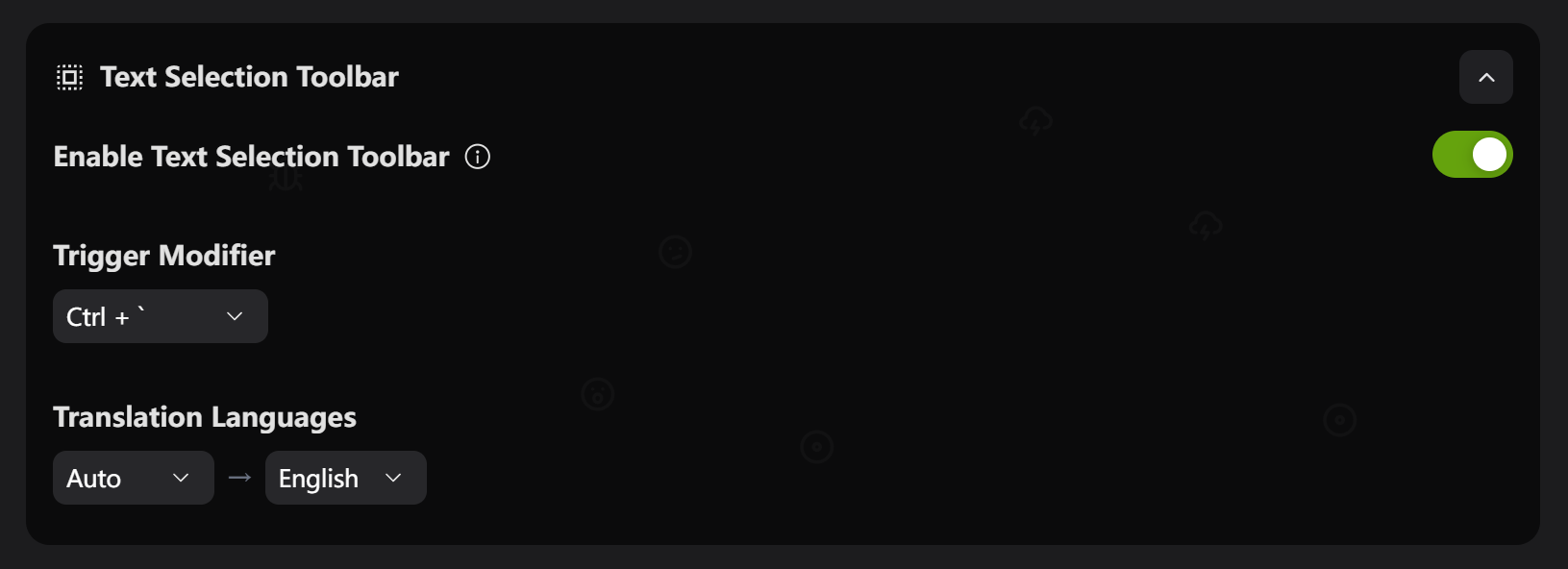
1. Open Settings → Text Selection Toolbar
2. Enable the feature toggle
3. Choose trigger hotkey:
* \`Ctrl + \`\` (recommended)
* \`Shift + \`\`
* \`Alt + \`\`
## Translation Settings
Set language pairs:
* Auto-detect → English
* Chinese → English
* English → Chinese
## Supported Apps
Works with almost all desktop apps: browsers, Office, code editors, PDF readers, etc.
## FAQ
**Toolbar not showing?**
1. Check if feature is enabled
2. Restart Blinko
3. Check app permissions
## How to Use
1. Select text in any application
2. Press \`Ctrl + \`\` (or your set hotkey)
3. Click the function button you need
## Main Features
* **Translation**: Multi-language translation
* **Copy**: Smart text copying
* **Q\&A**: Ask AI about selected text
* **Bookmark**: Save as Blinko notes
## Setup
1. Open Settings → Text Selection Toolbar
2. Enable the feature toggle
3. Choose trigger hotkey:
* \`Ctrl + \`\` (recommended)
* \`Shift + \`\`
* \`Alt + \`\`
## Translation Settings
Set language pairs:
* Auto-detect → English
* Chinese → English
* English → Chinese
## Supported Apps
Works with almost all desktop apps: browsers, Office, code editors, PDF readers, etc.
## FAQ
**Toolbar not showing?**
1. Check if feature is enabled
2. Restart Blinko
3. Check app permissions