> ## Documentation Index
> Fetch the complete documentation index at: https://docs.blinko.space/llms.txt
> Use this file to discover all available pages before exploring further.
# Blinko Plugin
> Blinko plugins extend the functionality of your note-taking experience. This guide will help you discover, install, and manage plugins.
### Plugin Marketplace
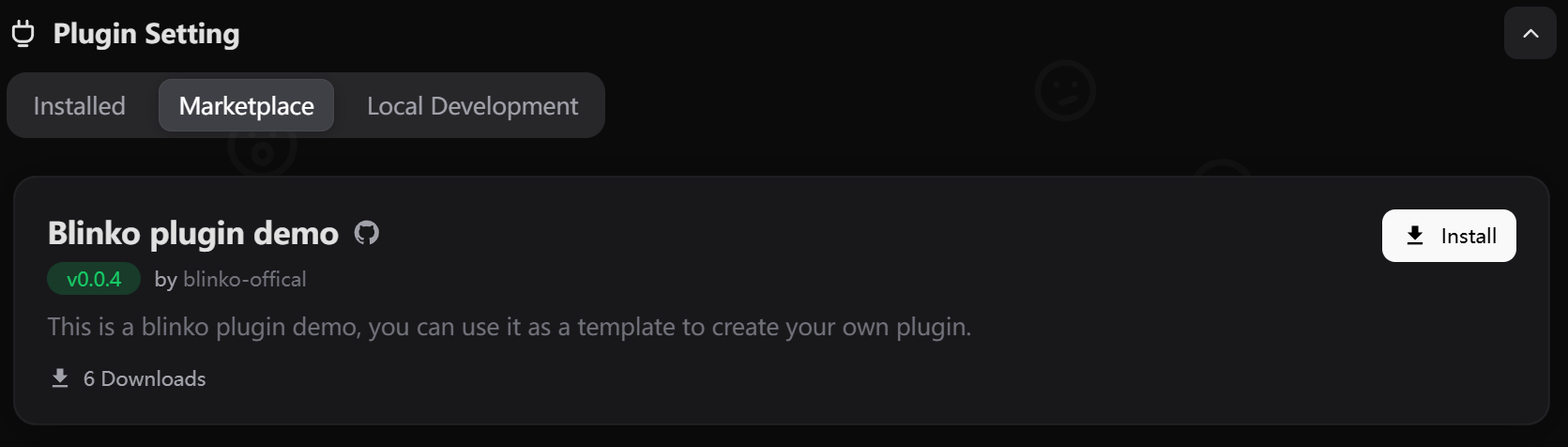 1. Open Blinko and go to Settings
2. Click on "Plugin Setting"
3. Browse the available plugins in the marketplace
4. Click on a plugin to view its details, including:
* Description
* Author
* Version
* Documentation
## Installing Plugins
1. Find the plugin you want to install
2. Click the "Install" button
3. Review the permissions requested by the plugin
4. Click "Confirm" to install
## Managing Plugins
### Plugin Settings
1. Open Blinko and go to Settings
2. Click on "Plugin Setting"
3. Browse the available plugins in the marketplace
4. Click on a plugin to view its details, including:
* Description
* Author
* Version
* Documentation
## Installing Plugins
1. Find the plugin you want to install
2. Click the "Install" button
3. Review the permissions requested by the plugin
4. Click "Confirm" to install
## Managing Plugins
### Plugin Settings
 Most plugins provide customization options:
1. Go to Settings > Plugin Setting
2. Find the installed plugin
3. Click the settings icon (⚙️)
4. Adjust the available options
5. Save your changes
### Removing Plugins
If you need to disable or remove a plugin:
1. Go to Settings > Plugin Setting
2. Find the plugin you want to manage
3. Or click the "Uninstall" button to remove
## Development
Interested in creating your own plugin?
* Check out our [Plugin Development Guide](/en/plugins/get-started)
* Join our [Developer Community](/en/community/community)
* Browse the [API Reference](/en/plugins/api-reference)
Most plugins provide customization options:
1. Go to Settings > Plugin Setting
2. Find the installed plugin
3. Click the settings icon (⚙️)
4. Adjust the available options
5. Save your changes
### Removing Plugins
If you need to disable or remove a plugin:
1. Go to Settings > Plugin Setting
2. Find the plugin you want to manage
3. Or click the "Uninstall" button to remove
## Development
Interested in creating your own plugin?
* Check out our [Plugin Development Guide](/en/plugins/get-started)
* Join our [Developer Community](/en/community/community)
* Browse the [API Reference](/en/plugins/api-reference)