> ## Documentation Index
> Fetch the complete documentation index at: https://docs.blinko.space/llms.txt
> Use this file to discover all available pages before exploring further.
# AI Post Processing
> Automatically process newly created note content
# AI Post Processing
AI post-processing automatically analyzes note content using AI after creation or updates, generating summaries, tags, or performing other analysis operations.
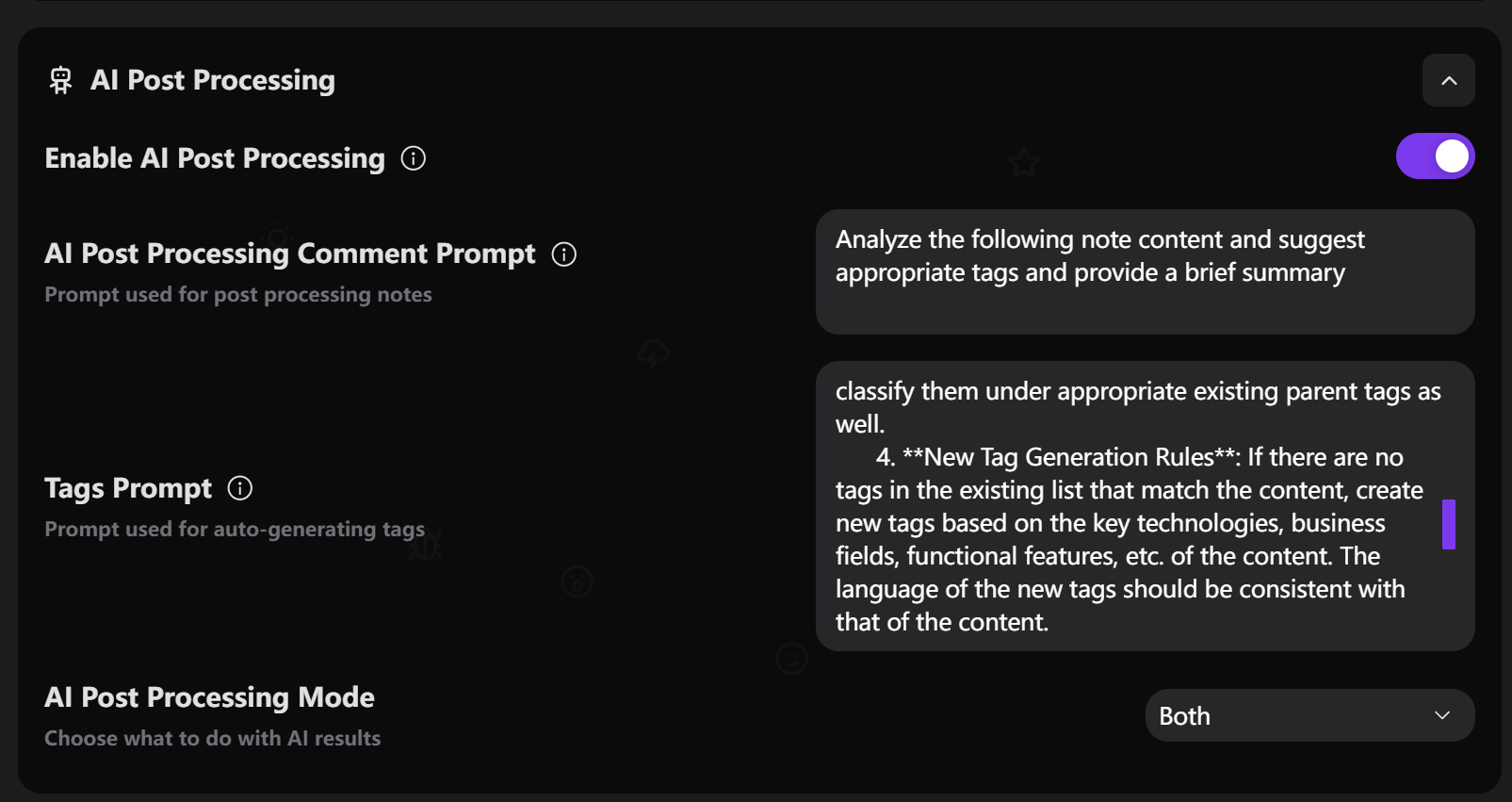 ## How to Enable
1. Open Settings → AI Settings
2. Find "AI Post Processing" section
3. Enable "Enable AI Post Processing" toggle
## Processing Modes
### Add as Comment
* AI analysis results are added as comments below the note
* Original note content remains unchanged
* View AI's analysis process and results
### Auto Add Tags
* AI automatically recommends and adds relevant tags based on content
* Helps better organize and categorize notes
* Improves search and discovery efficiency
### Both
* Generates both comments and adds tags simultaneously
* Most comprehensive AI processing approach
## Custom Prompts
### Post Processing Prompt
Set the prompt used by AI when analyzing notes:
```
Analyze the following note content and suggest appropriate tags and provide a brief summary
```
### Tags Prompt
Dedicated prompt for generating tags:
```
Recommend 3-5 relevant tags for the following content
```
## Workflow
1. **Create Note** - User creates a new note
2. **Trigger Processing** - System automatically detects new note
3. **AI Analysis** - Analyzes content using configured prompts
4. **Generate Results** - Adds comments or tags based on processing mode
5. **Notify User** - Sends notification when AI processing is complete
## Use Cases
### Content Analysis
* Automatically summarize long text content
* Extract key information and points
* Analyze sentiment and themes
### Smart Tagging
* Automatically categorize content
* Identify professional domains and topics
* Build consistent tagging systems
### Workflow Integration
* Automatically process meeting notes
* Intelligently organize study notes
* Classify and manage project documentation
## Important Notes
* Processing runs asynchronously in the background without affecting note creation speed
* AI analysis quality depends on selected model and prompt settings
* Can be disabled at any time without affecting already processed content
* Supports custom prompts to adapt to different use cases
## Configuration Tips
### Prompt Optimization
* Adjust prompts based on personal needs
* Clearly specify expected output format
* Include relevant contextual information
### Mode Selection
* New users recommended to start with "Add as Comment" mode
* Switch to "Both" for best results after familiarization
* Use only "Auto Add Tags" if tag management is well-organized
**Important Reminders**:
* AI post-processing requires AI to be enabled and models configured first
* Processing results may require manual review and adjustment
* Regularly check the quality of AI-generated tags and comments
## How to Enable
1. Open Settings → AI Settings
2. Find "AI Post Processing" section
3. Enable "Enable AI Post Processing" toggle
## Processing Modes
### Add as Comment
* AI analysis results are added as comments below the note
* Original note content remains unchanged
* View AI's analysis process and results
### Auto Add Tags
* AI automatically recommends and adds relevant tags based on content
* Helps better organize and categorize notes
* Improves search and discovery efficiency
### Both
* Generates both comments and adds tags simultaneously
* Most comprehensive AI processing approach
## Custom Prompts
### Post Processing Prompt
Set the prompt used by AI when analyzing notes:
```
Analyze the following note content and suggest appropriate tags and provide a brief summary
```
### Tags Prompt
Dedicated prompt for generating tags:
```
Recommend 3-5 relevant tags for the following content
```
## Workflow
1. **Create Note** - User creates a new note
2. **Trigger Processing** - System automatically detects new note
3. **AI Analysis** - Analyzes content using configured prompts
4. **Generate Results** - Adds comments or tags based on processing mode
5. **Notify User** - Sends notification when AI processing is complete
## Use Cases
### Content Analysis
* Automatically summarize long text content
* Extract key information and points
* Analyze sentiment and themes
### Smart Tagging
* Automatically categorize content
* Identify professional domains and topics
* Build consistent tagging systems
### Workflow Integration
* Automatically process meeting notes
* Intelligently organize study notes
* Classify and manage project documentation
## Important Notes
* Processing runs asynchronously in the background without affecting note creation speed
* AI analysis quality depends on selected model and prompt settings
* Can be disabled at any time without affecting already processed content
* Supports custom prompts to adapt to different use cases
## Configuration Tips
### Prompt Optimization
* Adjust prompts based on personal needs
* Clearly specify expected output format
* Include relevant contextual information
### Mode Selection
* New users recommended to start with "Add as Comment" mode
* Switch to "Both" for best results after familiarization
* Use only "Auto Add Tags" if tag management is well-organized
**Important Reminders**:
* AI post-processing requires AI to be enabled and models configured first
* Processing results may require manual review and adjustment
* Regularly check the quality of AI-generated tags and comments