> ## Documentation Index
> Fetch the complete documentation index at: https://docs.blinko.space/llms.txt
> Use this file to discover all available pages before exploring further.
# S3 Storage
> Configuring S3 Storage
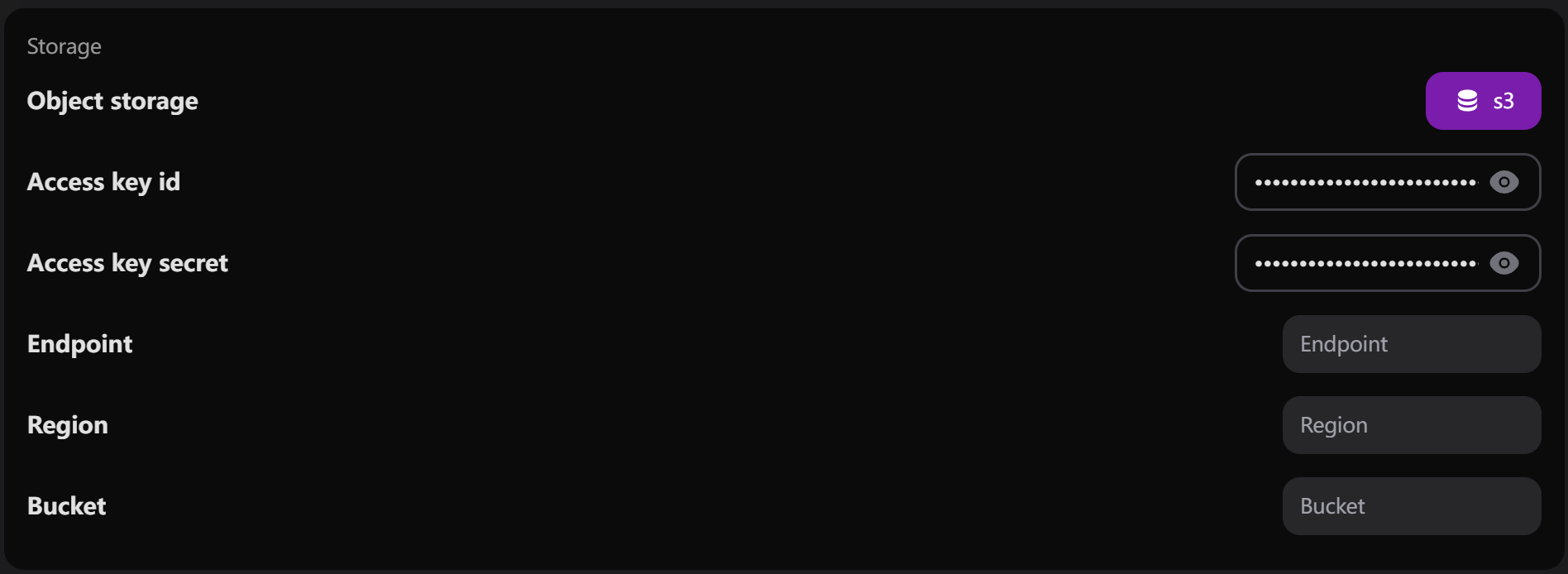 * **Access Key ID**: A unique identifier for your S3 credentials
* **Access Key Secret**: The secret key paired with the access key for authentication
* **Endpoint**: The URL of the S3-compatible service (e.g., AWS S3, MinIO)
* **Region**: The geographical location where your S3 bucket is hosted
* **Bucket**: The specific storage container name where files will be stored
1. Log into your Object Storage Provider (AWS, MinIO, or similar)
2. Create a Bucket:
* Navigate to the storage service
* Select the option to create a bucket
* Define a unique name and region
* Adjust permissions and settings as needed
1. Access the Security Section (typically under "IAM" in AWS)
2. Create Access Credentials:
* Generate an Access Key ID and Secret Access Key
* Store these securely for configuration
1. Set up the Endpoint:
* AWS users: `https://s3..amazonaws.com`
* Other providers: Check provider documentation for endpoint URL
2. Test Configuration:
* Verify connection to S3 storage
* Perform a test upload/download to confirm functionality
* **Access Key ID**: A unique identifier for your S3 credentials
* **Access Key Secret**: The secret key paired with the access key for authentication
* **Endpoint**: The URL of the S3-compatible service (e.g., AWS S3, MinIO)
* **Region**: The geographical location where your S3 bucket is hosted
* **Bucket**: The specific storage container name where files will be stored
1. Log into your Object Storage Provider (AWS, MinIO, or similar)
2. Create a Bucket:
* Navigate to the storage service
* Select the option to create a bucket
* Define a unique name and region
* Adjust permissions and settings as needed
1. Access the Security Section (typically under "IAM" in AWS)
2. Create Access Credentials:
* Generate an Access Key ID and Secret Access Key
* Store these securely for configuration
1. Set up the Endpoint:
* AWS users: `https://s3..amazonaws.com`
* Other providers: Check provider documentation for endpoint URL
2. Test Configuration:
* Verify connection to S3 storage
* Perform a test upload/download to confirm functionality